
By
Emre Toptanci
on 06/08/2024, 11:09
Last updated on 7/24/26, 5:18 PM

If a Jira issue keeps bouncing between the same statuses, that's usually a sign of miscommunication or unclear requirements. And it means extra work and slower delivery.
If a work item keeps moving back and forth between the same statuses, it’s usually a sign of miscommunication or unclear requirements. This kind of backtracking leads to extra work, slows things down, and makes it harder to get things done on time.
To keep things running smoothly, teams need to know how often issues are reopened or statuses revisited. Spotting the pattern early is what lets you actually fix it.
Timepiece – Time in Status for Jira tracks reopen counts and shows you exactly which issues and statuses are the problem
The Cost of Reopened Jira Issues
Reopened issues mean extra work and slower delivery. Usually it comes down to a mismatch on the team — missing details, unclear feedback, incomplete handoffs, and the same work gets redone more than once.
The problem is, it's not always easy to notice this repeating pattern in your daily work. Without a clear way to track these patterns, teams might be falling into the same pitfall over and over again.
The first step is finding exactly which issues and statuses are stuck in that pattern.
How to Track Reopen Counts
With Timepiece, teams can track how many times issues are reopened and which statuses are revisited. You can easily spot patterns, and take action to improve your workflow.
Status Count Report is the first choice for this need. This report clearly shows how many times each issue has moved into each status. With this visibility, you can instantly pinpoint tasks that caused rework.
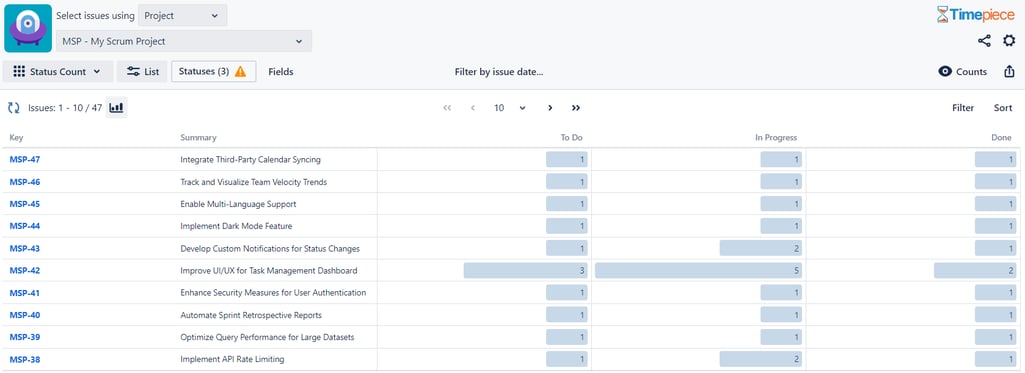
Here you can see the status count report by how many times statuses were visited by each issue
Highlighting Issues with Sorting and Filtering
With the Filter and Sort options, you can quickly identify the issues that jump between the same statuses.
For example, following up on our example above, you can use the Filter option to find issues that visited the In Progress status more than once.
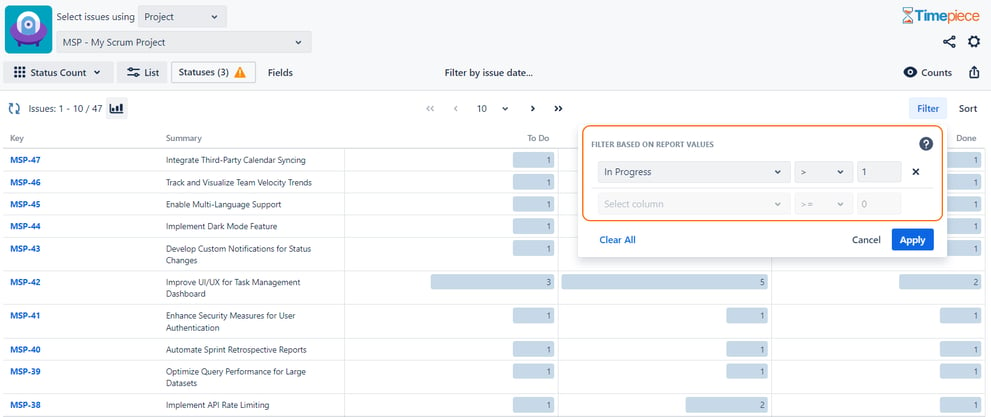
Here we can see that out of our 10 issues, 6 issues were reopened at least two times.
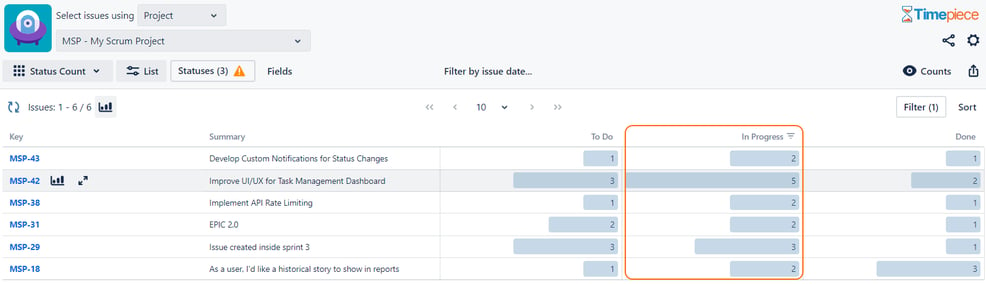
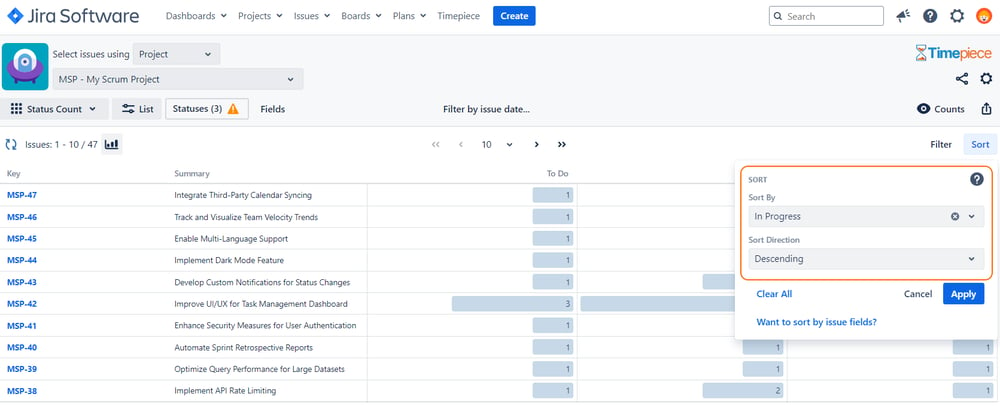
Here we can see that some of the issues were reopened several times. These are the ones that we need to focus our investigation on.
Tracking Reopen Trends Over Time
You’ve found some problematic cases, identified root causes, and implemented some improvements. Now what? How will you see if things are getting better or not?
For that, you can configure the Status Count Report as an Average report, grouped by months, weeks, days, etc.
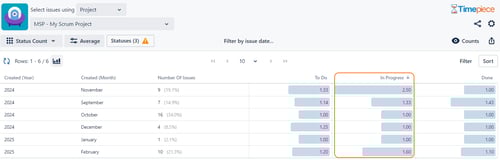
Here you can see that the average use of the InProgress status (and so the reopens) is on a decline from month to month.
Conclusion
If you manage a team, tracking reopen counts is one of the simplest ways to cut down on rework. With Timepiece, teams can easily monitor how often issues move back and forth, spot problematic work items, and take action to minimize unnecessary rework.
Want to try it on your own instance? Start a 30-day free trial. Timepiece is free on Cloud for teams up to 10 users.

Find Workflow Delays with Timepiece – Time in Status for Jira

Exclude Non-Working Hours from Jira Time Reports with Timepiece