
By
Gizem Gokce
on 06/08/2024, 11:09
Last updated on 7/27/26, 1:48 PM

Timepiece – Time in Status for Jira tracks how long each issue spends in each status. By default it uses a 24/7 calendar, but you can build a custom one that matches your team's real work schedule.
How to Exclude Non-Working Hours from Jira Time Reports
By default, Timepiece offers reports based on a standard 24/7 calendar. However, to achieve more precise reporting, it also supports custom calendars tailored to your team’s work schedule. Each custom calendar defines:
- Defined workdays
- Specific working hours
- Holidays
- Time zone
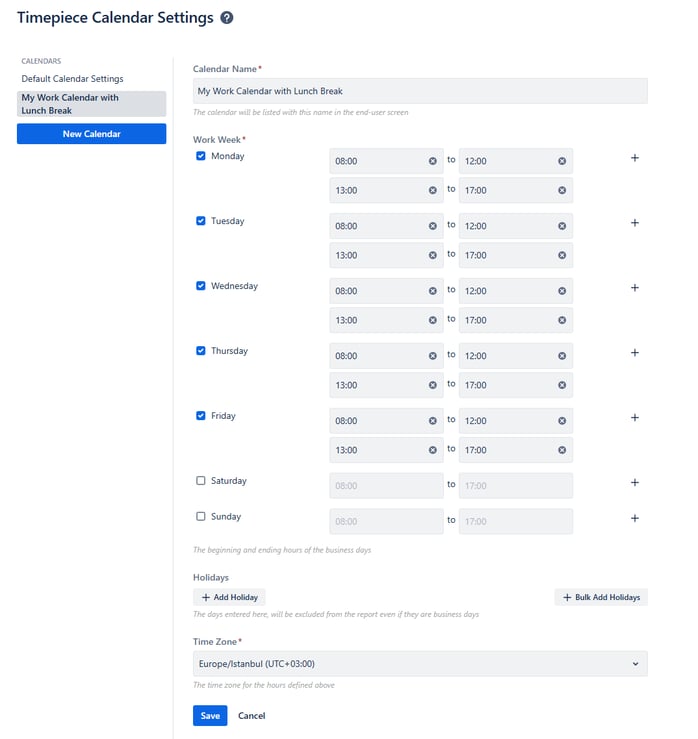
With these configurations, reports generated by Timepiece exclude non-working hours and days, ensuring that time calculations align with actual business operations. (You can even exclude lunch breaks from your working hours.)
Real-World Example
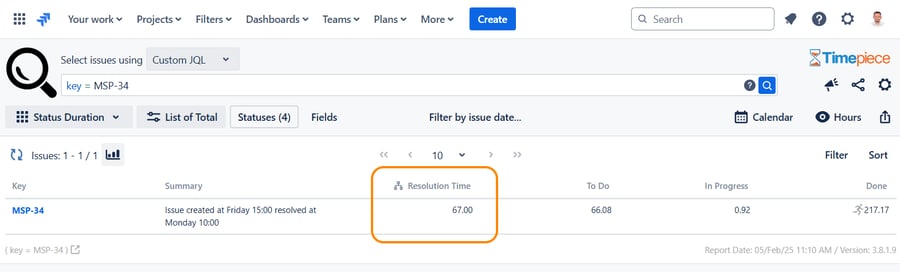
Consider a team that operates Monday to Friday from 08:00 to 17:00. If an issue is created at 3 PM on a Friday and resolved by 10 AM the following Monday, a standard 24/7 calendar will calculate the resolution time as 67 hours.
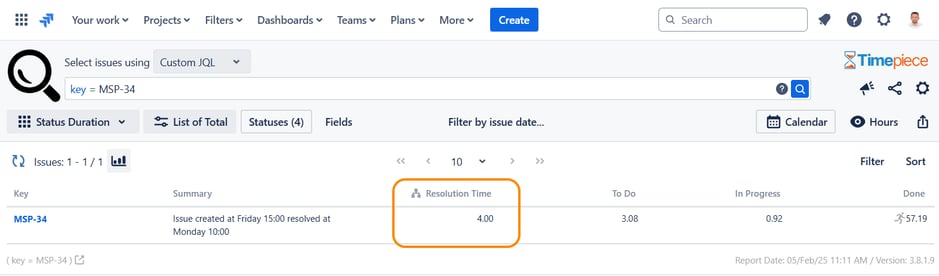
However, with a business-specific calendar, Timepiece accurately reflects the resolution time as just 4 working hours—a significant difference that offers a true representation of work efficiency.
Combined with custom time metrics, Timepiece's custom calendars help you get the most accurate measurements possible.
With a calendar that matches your team's real hours, your Time in Status numbers reflect actual work, not just elapsed time.
See Timepiece in action. Start a 30-day free trial today. Timepiece is even free on the Cloud for up to 10 users. Also, you can book a demo meeting with our experts.

Find Workflow Delays with Timepiece – Time in Status for Jira

New Feature: Scheduled Reports & Alarms for Timepiece – Time in Status for Jira