
By
Emre Toptanci
on 06/08/2025, 10:43
Last updated on 9/29/26, 1:29 AM

Are you looking to elevate your data analysis within Jira? Integrating Timepiece - Time in Status for Jira with eazyBI can transform how you analyze and report on time-tracking metrics. This powerful combination offers deep insights and comprehensive reporting across your Jira data.
What is eazyBI?
eazyBI is a leading business intelligence and custom reporting app built directly into Jira. It allows project managers and agile teams to build highly customizable charts, pivot tables, and dashboards using a drag-and-drop interface. By pulling raw data from Jira, along with third-party apps and external sources, eazyBI transforms complex project metrics into visual, multidimensional reports. It is the go-to tool for teams that need deeper data analysis than Jira’s native reporting can provide.
Why Integrate Timepiece with eazyBI?
eazyBI offers powerful reporting features across various platforms and, when integrated with Timepiece, it provides a comprehensive view of your time-tracking metrics. This integration allows you to analyze time data alongside other important metrics from Jira.
How to Integrate Timepiece Data
Here’s a step-by-step guide to fetching Timepiece data and integrating it with eazyBI:
- Build Your API Call: Start by constructing a REST API call to fetch your Timepiece data.
- Configure eazyBI: In eazyBI, navigate to the Jira Apps menu, select eazyBI, and go to the Source Data tab. Add a new source application by choosing the REST API option. Enter your API URL and select GET as the request type.
- Manage Pagination: Configure pagination settings to handle data in chunks. Choose “Offset and limit parameter,” set “Offset parameter” to startIssueIndex, “Limit parameter” to pageSize, and “Limit value” to 100.
- Set Up Authentication: Obtain your Timepiece REST API token from the API Settings page. In eazyBI, select “HTTP Header” for authentication, then enter Authorization as the header name and TISJWT <your_api_token> as the header value.
- Define Content Parameters: Set the content type to CSV and specify that there is 1 header row in your data.
- Schedule Data Imports: Adjust the import schedule to fit your reporting needs.
Next Steps
Once configured, map your Timepiece data to eazyBI dimensions and measures, and start the import.
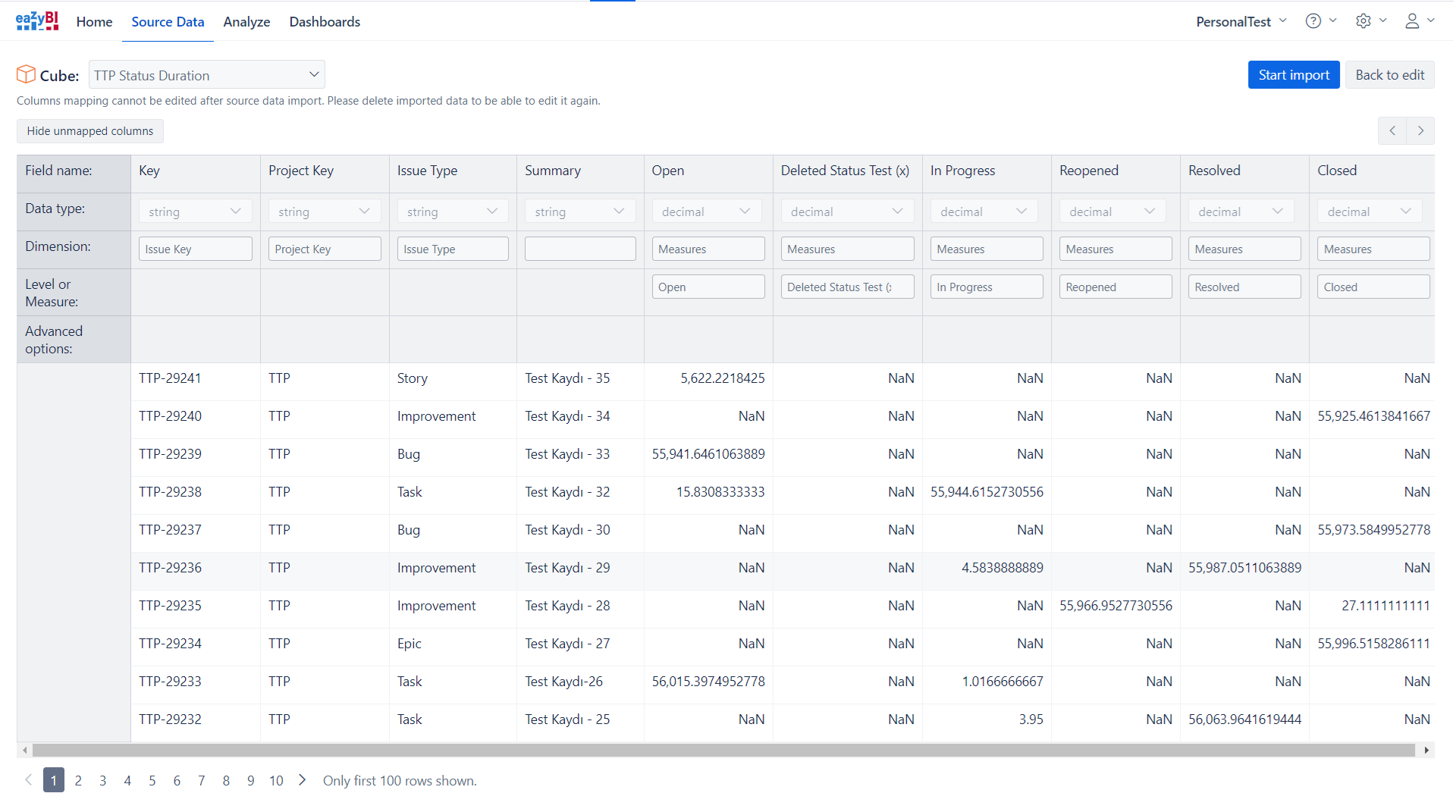
You’ll now be equipped to leverage powerful analytics and reporting capabilities with your time-tracking data.
For a detailed guide on configuring your Timepiece integration with eazyBI, including exact steps and parameters, check out the full technical article here.
To try Timepiece - Time in Status for Jira for free, visit Atlassian Marketplace today. For more details, book a one-on-one demo with our experts.

How to Deduct Flagged (Blocked) Time from Cycle Time and Lead Time in Jira

Time-Period Reports in Timepiece – Time in Status for Jira