
By
Emre Toptanci
on 30/07/2025, 15:22
Last updated on 6/9/26, 12:19 PM

In an ideal world, we would have all problems analyzed once, all designs approved once and all implementations tested once. But that is rarely the case. More often than not, tasks go through several repetitions before being marked as complete.
When you want to optimize your process and improve your team’s productivity, one of the best starting points is to hunt for these repetitions, identify the root causes, and implement fixes for those causes so things will slide smoothly in the future.
If you are using Jira for managing your tasks, your hunt will start with a search for Reopened Issues.
How to Find Reopened Issues?
To filter out reopened issues, there are things you can do without an app and there are additional capabilities if you have the option to use an app.
Without an App
Jira’s advanced JQL functions allow the user to filter issues that were reopened. Let’s take a look at the following JQL:
project = ABC and status changed from Resolved to 'In Progress'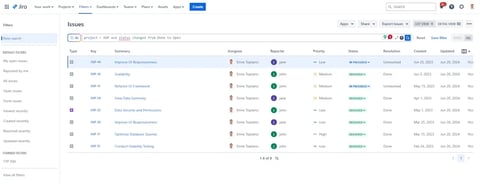
This self-explanatory JQL will give you the issues that transitioned from Resolved back to In Progress somewhere in their lifetime. You can use the same JQL capability to search for reopened issues in your workflows.
If you have too many of those issues, you will want to take the next step and find the ones that reopened the most but this is as far as you will get without an app.
With an App
For further analysis, you will need a marketplace app. One such Jira app that will help you with this investigation is Timepiece Time in Status for Jira.
Timepiece mainly provides duration reports that will show you how much time each issue spends on each status, on each assignee, on each group, etc. Other import Timepiece provides is the Count Report.
One of those reports for this case is the Status Count report. As the name suggests, this report type shows how many times each status was used during the issue’s lifetime.
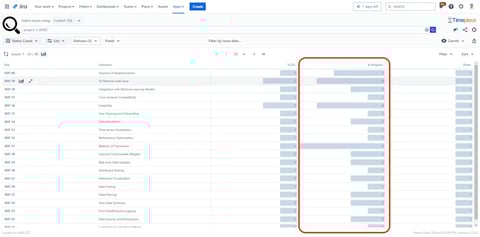
Filtering
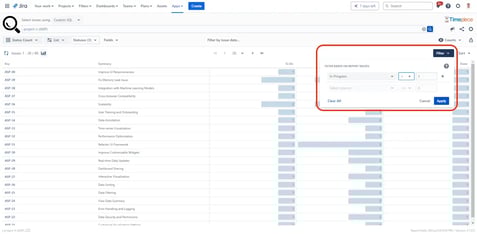
For many cases, tracking status counts is not enough. You can also Filter issues that have used a given status more than once. For example, filter the ones that were In Progress more than once.
Sorting
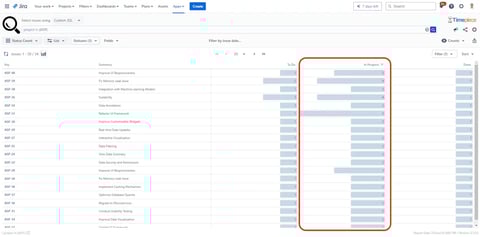
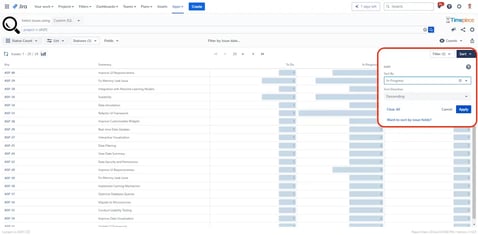
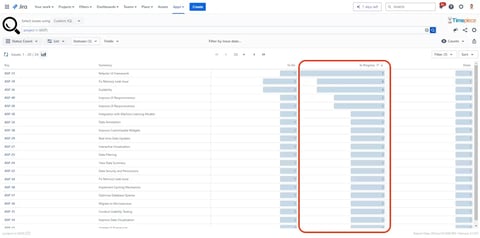
Even among the reopened issues, you want to start by working on the ones that were reopened the most. With Timepiece, you can Sort issues by the number of times they visited a status. For example, sort by the number of times issues visited the In Progress status.
Measure Cycle Time and Lead Time
You can also hunt for issues that have cost you a lot of time through time-based metrics like Time in Status, Cycle Time, Lead Time, Resolution Time, etc. And for further analysis, you might want to inspect each issue’s workflow to see at which stage it lost time.
You can use basic Jira functions to identify reopened issues, but deeper analysis requires the use of a marketplace app like Timepiece - Time in Status for Jira. To learn more, you can visit its Atlassian Marketplace page and start a 30-day free trial today.

Finding the Bottlenecks: A Guide to Cycle Time and Lead Time Trends with Timepiece

Jira Average Time in Status: A Complete Guide