
By
Birkan Yildiz
on 19/11/2026, 16:24
Last updated on 11/19/26, 4:26 PM

'How many times were we blocked in October?’ sounds like an easy question at the end of the month. Answering it isn’t.
Or your service lead would like to know how many tickets Level 2 had this week. Or your manager asks who worked on what last month, not just who has it now. You open Jira, and there’s no quick answer. Jira is good at showing where work is today. These questions are about where work has been, and how often.
Timepiece - Time in Status for Jira now has a new count report that answer them. Pick a field, like Block Reason or Assignee, and a time period. Timepiece counts how many times your issues (work items) held each value, by day, week, month, quarter, or year.
Why Can't Jira Answer "How Often"?
Most Jira searches and reports use what a field says now, and its history search covers only six fields. WAS and CHANGED only work with Assignee, Fix Version, Priority, Reporter, Resolution, and Status. You can’t search the history of custom fields like Block Reason, Support Team, or Approver.
Where JQL does work, it gives you a list of work items that had a value, but not how many times they had it. You also need one search per value, per period. When a work item is reassigned, a report on the current value shows only the last assignee. Everyone who worked on it before drops out. So you count by hand, one work item history at a time. And that is somehow fine for 5 work items. But it’s definitely not for 500.
What Does the New Report Show?
It shows how many times each work item held each value of the field you pick, in each period. Pick Block Reason and Month, for example, and you see how many times each work item was blocked for each reason, month by month.
You can pick more than one field, like Block Reason and Status. Switch to the Sum view, and you get one row of totals instead of one row per work item.
You can read the same numbers from two angles. With field values first, you follow one value over time, like one block reason across six months. With periods first, you compare values side by side, like every support team in the same week. The numbers don’t change, only the column order.
In the report type list, you’ll find these two views as Any Field Count per Time-Period and Time-Period Count per Any Field.
What Can You Answer With It?
Most "how many times per day, week, or month" questions about a field your team sets.
|
Question |
History Field to select |
|---|---|
|
How many work items were in each status each week? |
Status, Sum view |
|
How often was work blocked, and why? |
Block Reason |
|
Where in the workflow do blocks happen? |
Block Reason + Status |
|
How often was work flagged? |
Flagged |
|
How many tickets were with Level 2 or Level 3? |
A team field, like Support Team |
|
How many requests were with security, legal, or finance review? |
A review team field |
|
How many times was each person the approver? |
Approver |
|
How much work did each person handle? |
Assignee, Sum view |
|
How many people were on each team or project each month? |
Team or Project field on personnel records, Sum view |
How Often Is Work Blocked, and Why?
Counting blocks shows the impediments that keep coming back.
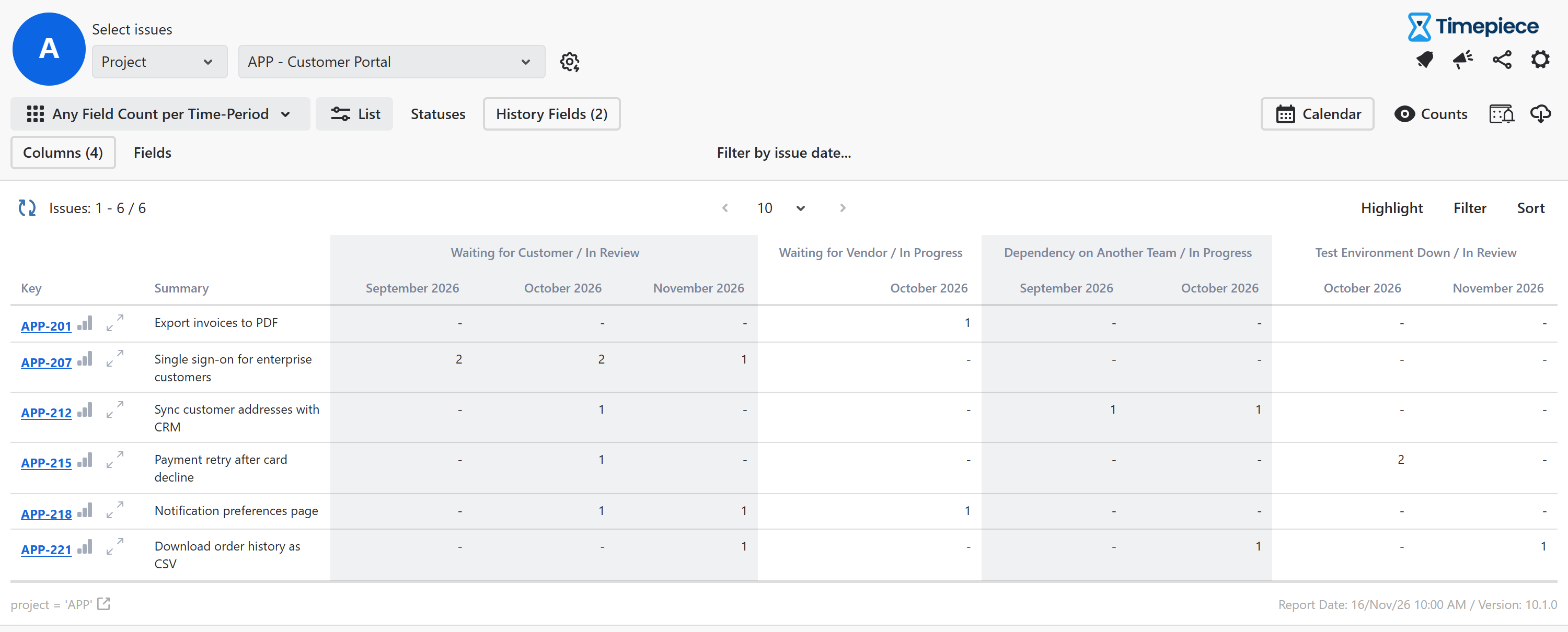
2 work items each lost 10 days. One was blocked once for 10 days. The other was blocked five times for two days each. A duration report shows the same total for both. The count shows that the second one is a pattern, and a pattern is something a retrospective can act on.
Add Status as a second field to see where blocks happen, like “Waiting for Customer” during “In Review.” If your team marks blocked work with Jira’s Flagged field instead, select Flagged. For total blocked time, pair it with the Any Field Duration per Time-Period report.
How Much Work Leaves Your Team?
If you set a team field when work goes out and clear it when it comes back, Timepiece - Time in Status for Jira counts how often work was with each team.
Service leads see how many tickets were with Level 2 and Level 3 each week and can plan capacity from real numbers. Teams with review gates see which function gets the most requests each month, whether it's security, legal, compliance, finance, or a vendor. With an Approver field, you see how many times each person was the approver, and whether one person carries most of the load.

Who Handled the Work Each Month?
Select Assignee and the Sum view, and you see how many work items each person held each month, including work reassigned before the month ended, not only the current assignee. A team field works the same way.
Keep two things in mind. A count isn't effort: ten small fixes and ten big features are both 10. And it's a view of the system, not a ranking. A high count can point to a handoff-heavy process as much as to a busy person.

How Does Timepiece Count?
Each time a work item holds a value in a period, that counts as one. So the report counts occurrences, not distinct work items. Work that comes back to the same person, team, or status counts again, and a value that stays set for two months counts in both. Clear the field when the block, escalation, or review ends.
Try It With Your Own Jira Data
Setup details are in the documentation.
Start a free trial on the Atlassian Marketplace or book a live demo, and we'll walk through it with your own fields.

Track Time Metrics Natively with Timepiece Custom Field

Report Time Spent in Each Sprint with Timepiece for Jira