By
Gizem Gokce
on 06/11/2026, 17:58
Last updated on 11/6/26, 5:58 PM

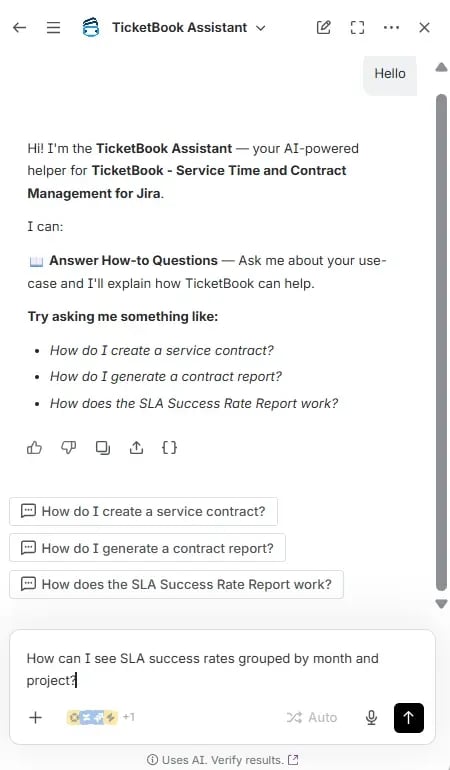
TicketBook now has an AI assistant. You can ask a question in plain language, and TicketBook Assistant tells you which setting to use and how to set it, without leaving JSM. It covers contracts, clauses, quota rules, reports, and permissions in TicketBook - Service Time and Contract Management for Jira.
Contract setup is important because it determines your billing amounts. Each TicketBook contract has clauses, a period type, and optional carry-over and borrowing rules. Each choice changes what the Contract Report counts. The report won't match the agreement if one is incorrect, and you probably find out at the end of the month.
TicketBook’s new AI Assistant allows you to get the setup right before the first report goes out.
What Can You Ask It?
Anything regarding how TicketBook works: contracts and clauses, period types, carry-over and borrowing, amends, the Contract Report, SLA Success Reports, portal and issue view panels, and permissions.
Here are three questions where it saves the most time.
Which Clause Type Fits Your Contract?
The one that matches what the agreement limits. Number of Issues caps work items per period. Total Service Hours caps logged hours, like a monthly support retainer. SLA Success Rate sets a target for Jira Service Management SLA timers. Credit caps a credit total taken from a numeric field, for when requests cost different amounts.
Which Period Type Should You Pick?
It depends on the start date. For a contract that starts on the 15th, Monthly (Calendar Month) makes a short first period that ends at month end, then follows calendar months. Monthly (Exact Day) runs every period from the 15th to the 14th. Same contract, different periods, different numbers.
Why Can't a User See a Contract?
Usually because one of two permission layers is missing. A user needs app-level access, set by a Jira admin, plus View or Edit permission on the contract itself. Jira admins always see every contract, so testing as an admin hides the problem.
How Do You Open It?
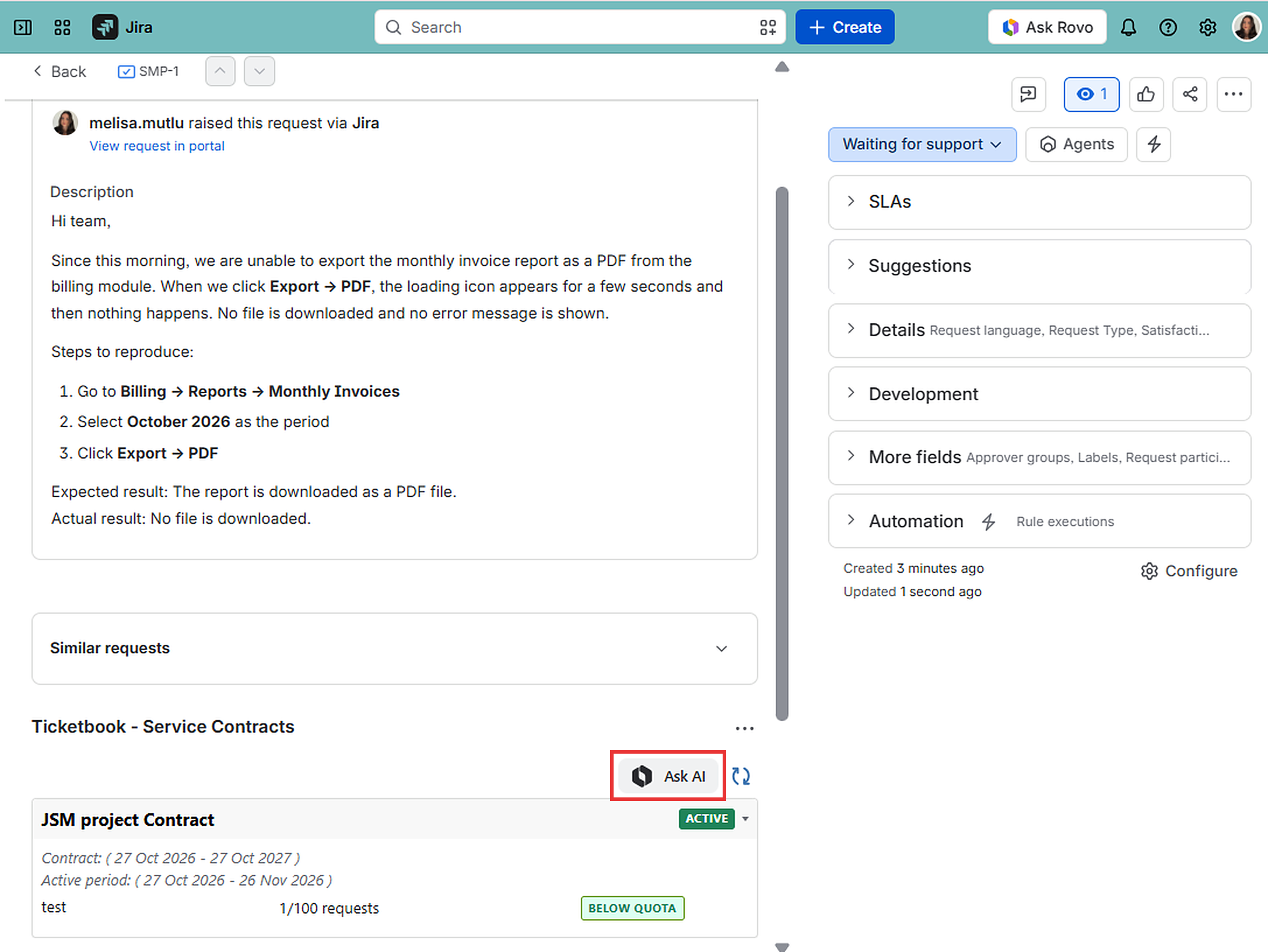
From two places:
- In TicketBook: click TicketBook Assistant in the bottom-right corner of the screen.
- On a Jira work item: click Ask AI in the TicketBook section. This is especially easy when you're already working on a ticket.
What Should Jira Admins Know?
Three things:
- It runs on Atlassian Rovo. Only users with Rovo access can use it. OBSS doesn't add a separate AI model, and the agent doesn't send customer data out.
- It doesn't widen access. Contract data stays behind TicketBook's existing app-level and contract-level permissions.
- You decide who uses it. Limit access from the agent's settings in Rovo.
New to TicketBook? Start with A Complete Guide: SLAs and Service Contract Management in Jira. Try TicketBook for free on the Atlassian Marketplace. Want a walkthrough first? Book a demo with one of our experts.