
By
Emre Toptanci
on 06/08/2024, 11:09
Last updated on 9/29/26, 2:23 AM

Up until a certain point, Timepiece - Time in Status for Jira only reported on things that already had a status in your workflow: how long an issue spent in each status, with each assignee, or with each group. If you wanted a duration report on something, it had to be a status first. The Any Field Duration report changed that.
It does for any Jira field what Status Duration does for the Status field, or Assignee Duration does for the Assignee field: it shows you how long an issue held any value in any field you pick, no workflow status required.
That opens up a few things you couldn't measure before, without adding a single status to your workflow: How long you waited on each external vendor How long an issue was blocked, and for what reason How much time issues spent in each status, broken down by sprint, epic, or version.
How to Track Time Waiting on a Vendor
Say each of your Jira issues is a customer request, and some of them need to be escalated to an external vendor. You want to know how much time you're losing waiting on each vendor, without building a separate status for every one of them.
Here's how to set it up:
-
Create a Jira custom field called Vendor, with your vendors listed as options.
-
Add a status called Waiting for Vendor to your workflow.
-
On the transition into Waiting for Vendor, add a screen with the Vendor field on it, and make it required.
-
Add a post function that clears the Vendor field on any transition out of Waiting for Vendor.
-
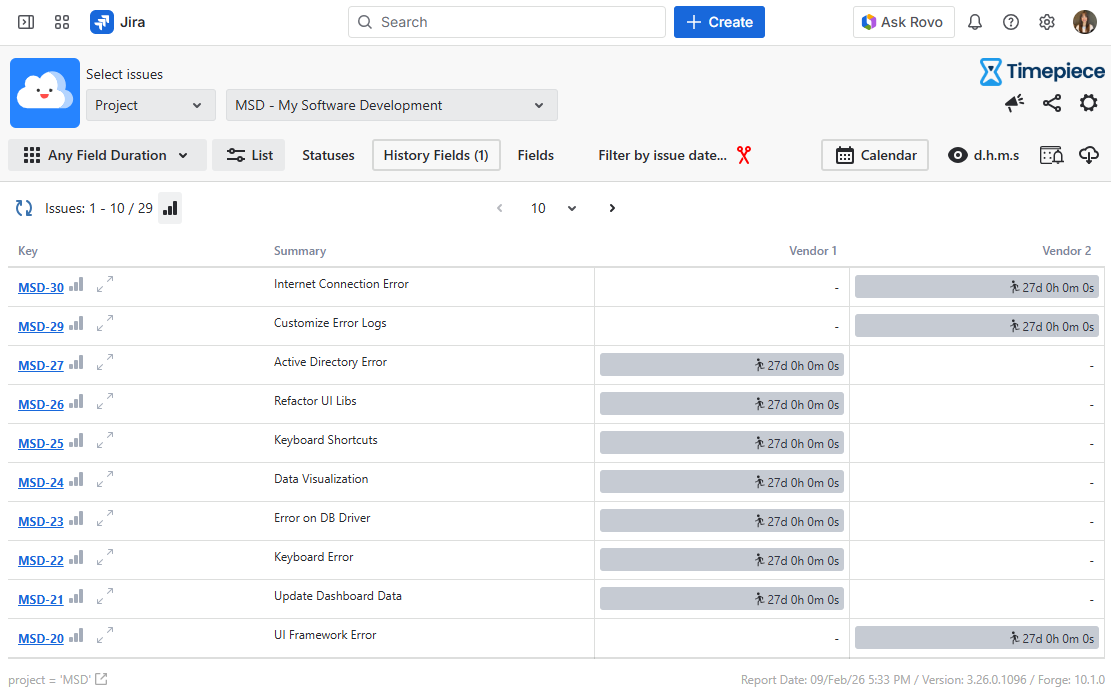
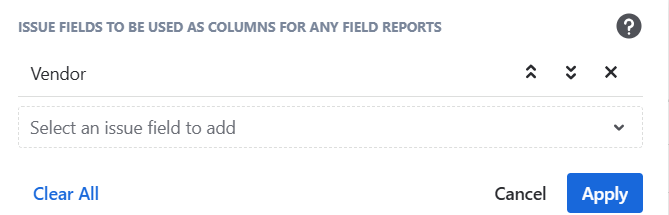
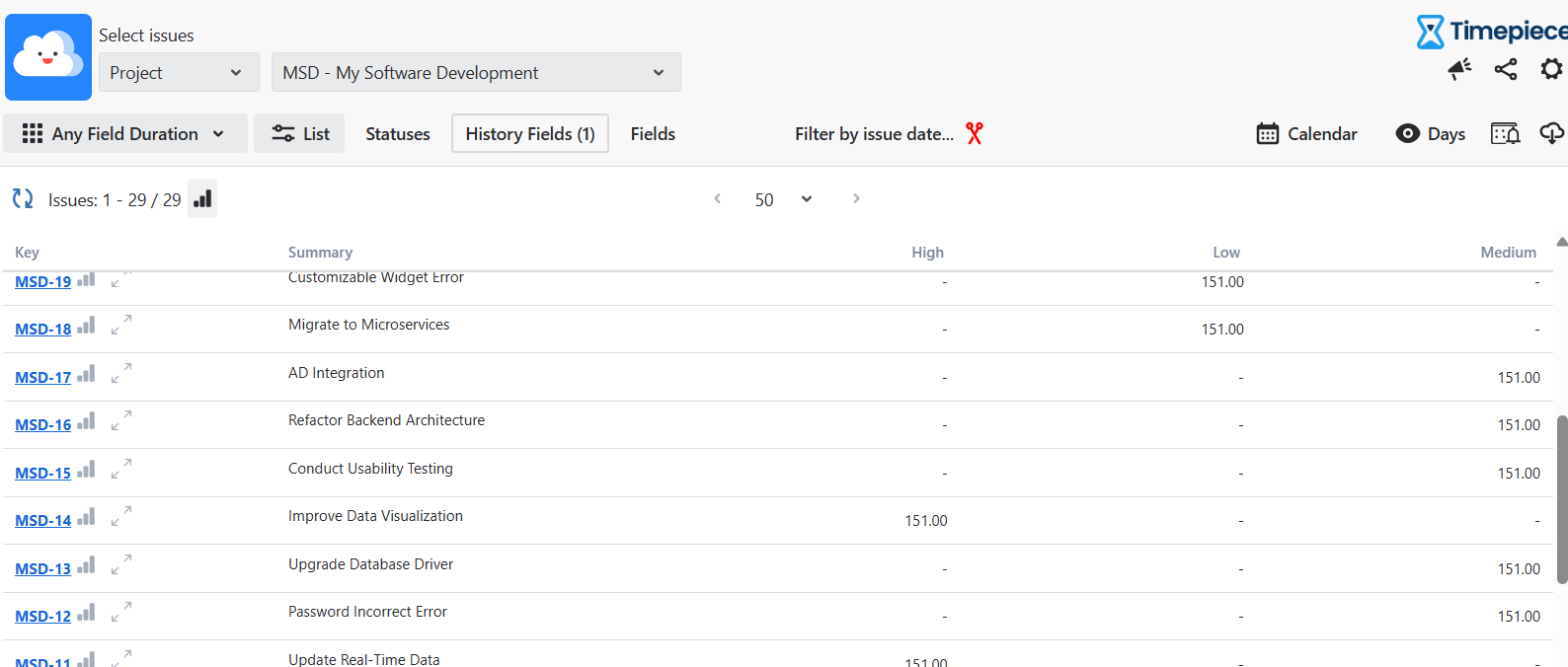
On the Timepiece reporting page, switch to Any Field Duration, open History Fields, and select Vendor.
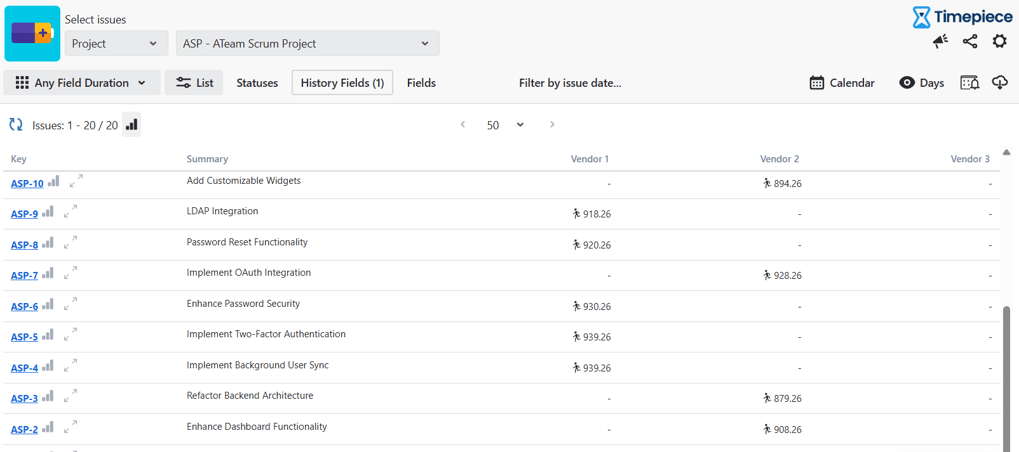
The report will show exactly how long each issue spent waiting on each vendor. Run it through an average or sum report if you want the totals across all your issues, not just one at a time. The same setup works for tracking why an issue was blocked. Swap "Vendor" for a field called Block Reason, and "Waiting for Vendor" for a status called Blocked.
The report will show how long you lost to each reason, and if an issue gets blocked more than once for different reasons, you'll see that too.
Reporting Across Sprints, Epics, or Versions
Any Field Duration also supports more than one field at a time, up to 5. That's what lets you break a report down two levels deep instead of one.
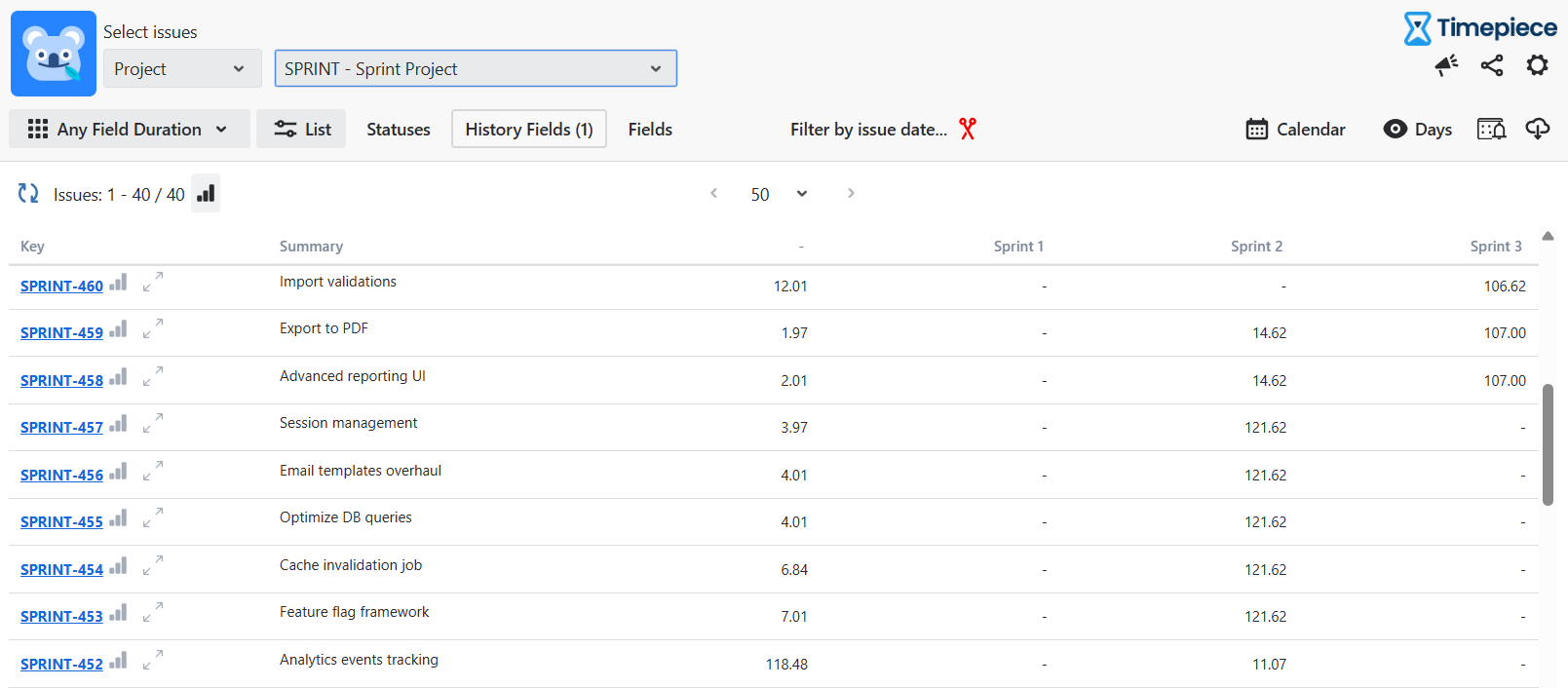
Say your issues move from sprint to sprint because they don't get finished in time. Select Sprint and Status together as History Fields, and the report will show how much time each issue spent in each status, separated out by sprint. The same works if you swap Sprint for Epic or Version.
What Fields Work With This
Single and multi-select fields, single and multi user pickers, text and long text fields are all supported, along with Epic Link, Affected/Fix Version, Sprint, Project, Issue Type, Status, and Assignee. Date, datetime, and number fields aren't supported, since a duration doesn't mean much for those.
One more thing worth knowing: you can still select specific statuses to include, on top of your History Fields. If you do, the report only counts time while the issue sits in one of those selected statuses; the clock pauses whenever the issue moves to a status you didn't select.
If you only need to count how often something happened rather than how long it lasted, there's a companion report called Any Field Count that works the same way, just for counts instead of durations.
All of this works with average and sum reports too, and you can pull the data out as a file export or through the REST API.
Want to try it? Start a 30-day free trial, Timepiece is free on Cloud for teams up to 10 users. or book a demo if you'd rather walk through it with us first.

New in Timepiece: Track Any Field Value Over Time

New in Timepiece: Custom Columns for Any Field Reports