
By
Birkan Yildiz
on 30/06/2026, 15:41
Last updated on 9/28/26, 11:04 PM

If you manage projects, conduct audits, or lead QA teams, you already know that a Jira ticket is more than just its current state. The real story lies in its history: who changed what, when a status transitioned, and how a scope developed.
Jira's ability to store every single modification and update is unmatched.
But when it comes time to actually extract, query, or report on that historical data, many Jira Administrators and Project Managers are having a hard time. Atlassian Community is full of questions and articles on this very topic.
In Jira, the data exists, but getting it out of Jira in a readable, actionable format is a big challenge, especially without extra tools.
In this guide, we will explore what Jira issue history actually includes, the native methods for querying and extracting it (including JQL, API, and Database approaches), and how you can streamline this process without writing a single line of code.
What Does Jira Issue Change History Include?
First, before diving into extraction methods, we need to understand what Jira tracks. The Jira changelog acts as a chronological ledger for a work item. Natively, it captures:
System Field Changes: Updates to the Summary, Description, Priority, and Issue Type.
Workflow Transitions: Every time an issue moves from one status to another (e.g., In Progress to In Review).
People Updates: Reassignments and changes to the Reporter field.
Custom Fields: Modifications to user-created fields specific to your workspace.
Every entry records the exact timestamp of the change, the user who performed it, the original value, and the new value.
Querying Jira History: Natively vs. JQL
For many users, the first instinct is to turn to Jira Query Language (JQL). Natively, JQL does offer historical operators such as WAS, CHANGED, BEFORE, and AFTER.
For example, you can write a query like:
status WAS "In Progress" BY currentUser() BEFORE startOfWeek()
While JQL is incredibly powerful for finding issues that meet historical criteria, it only returns a list of tickets in their current state. It does not generate a chronological timeline of the changes, nor does it display the historical values in your search results. You know the ticket changed, but to see the actual history, you still have to open each issue manually and scroll through the "History" tab.
Extracting History via Jira API and Database
When native JQL isn't enough, technical teams often resort to the backend. According to Atlassian's official support documentation, you can extract this from the backend database. Alternatively, developers can utilize the Jira Cloud REST API:
Database Approach
If you use Jira Data Center, you can run SQL queries directly against your database. To reconstruct an issue's history, you must join multiple tables, including jiraissue, changegroup, changeitem, project, and app_user.

REST API Approach
For Jira Cloud, developers can hit the /rest/api/latest/issue/{issueIdOrKey}/changelog endpoint. Both methods require dedicated developer time, database access, and a strong understanding of JSON or SQL. Furthermore, API responses are paginated and return raw data that still needs to be heavily formatted before it can be presented in a stakeholder meeting or an audit report.
How to Export Issue History from Jira Natively
A common question we see from teams is: "How can I just export Jira issue history to Excel?"
Unfortunately, Jira’s native export features (like exporting a filter to CSV or Excel) only capture the current values of your fields. The detailed, step-by-step changelog you see in the issue view is locked inside the UI. If you need a spreadsheet showing every time a priority changed over the last quarter, native Jira cannot generate that export for you out of the box.
Query and Export History in Jira Cloud with Historian
You shouldn't need to write SQL joins or API scripts just to see what happened to your project's tasks. This is why we built Historian - History Explorer for Jira.
Historian bridges the gap between Jira's hidden changelog data and your need for clear, exportable reports. It transforms your issue history into a highly organized, easily searchable interface.
History Explorer Report: Advanced Filtering & Aggregations
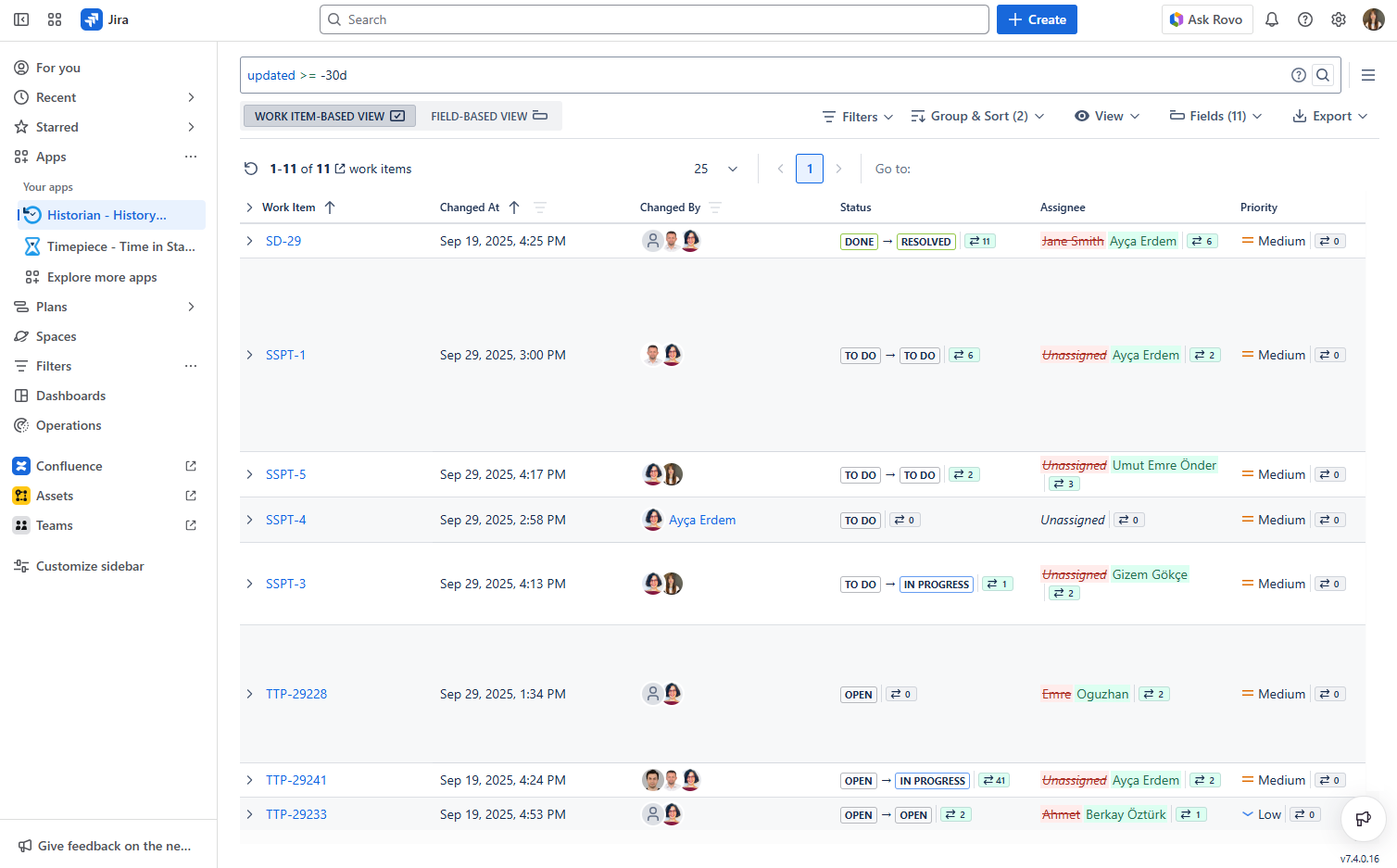
Rather than manually scrolling through unfilterable histories, the History Explorer interface transforms Jira's changelog into an organized, readable grid with deep field-level filtering:
Granular Field Filtering: Pinpoint exact events across issues. Instead of parsing thousands of modifications, you can isolate changes where a specific custom field (e.g., 'Story Points') was modified by a specific actor (e.g., 'John Doe') within a date range, filtering by the exact transition from an old value to a new value.
.png?width=1024&height=451&name=historyexplorer%20(1).png)
Dual Aggregation Views: This option lives directly on the History Explorer screen:
Work Item-Based View: Groups changes chronologically by issue key with nested, expandable rows to trace a ticket's full narrative.
Field-Based View: Displays attributes as columns, with each row representing a single change event. You can efficiently track how story points or assignee shifts evolved across an entire sprint or project, and filter columns directly, like showing only status transitions to Done.
Historic Query: Temporal Backlog Snapshots
The Historic Query screen acts as a backlog "time machine". By applying a past date and time coordinate to standard JQL, Historian instantly recalculates and displays the results, showing the exact field values (e.g., Story Points, Status, Assignee) as they existed at that precise moment.
Change Badges: Displays numbers next to field data showing the volume of updates that occurred before (left badge) and after (right badge) your selected date.
.png?width=1673&height=798&name=historicquery%20(3).png)
Compare Dates
Need a snapshot in time? The Compare Dates feature allows you to select two specific dates and instantly view a clean summary of what changed between point A and point B.
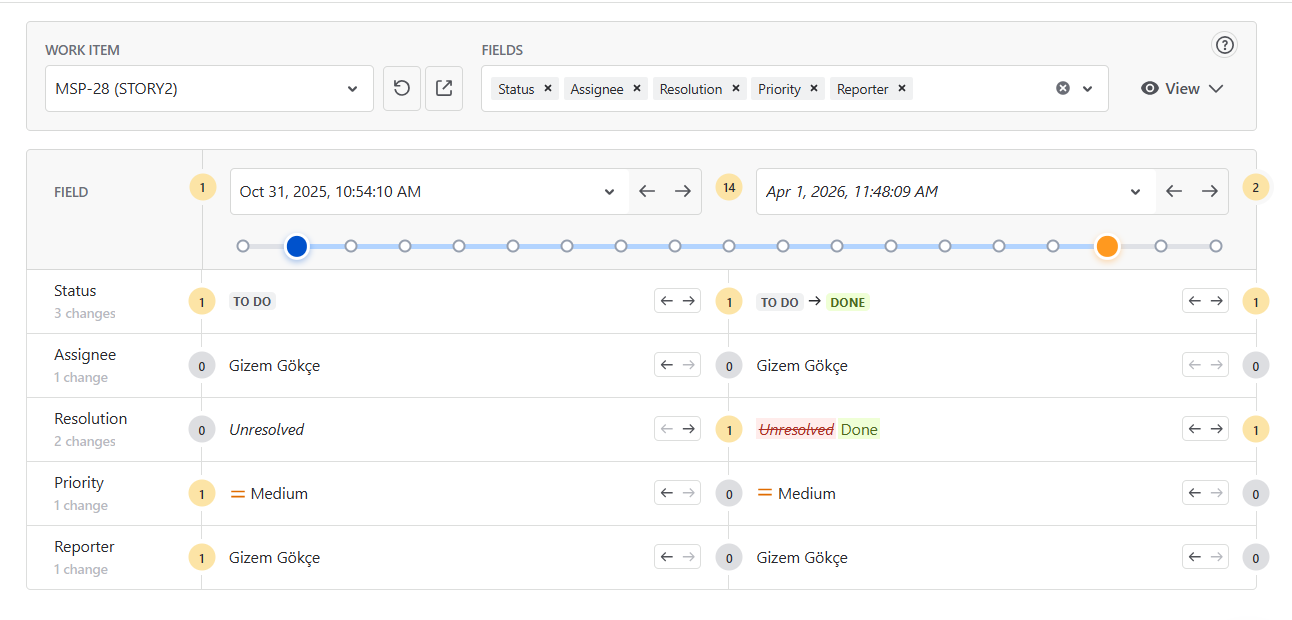
Interactive Timeline: Click an issue's visual timeline dot to refresh the entire backlog report to that specific historical version's state.
One-Click Exporting
Historian completely solves the native export limitation. Once you have filtered, sorted, and grouped your view, you can export the exact data you see on your screen. Historian supports seamless, one-click exports to Excel and CSV formats. Your data is instantly ready for compliance audits, team retrospectives, or stakeholder reporting.
.png?width=1562&height=740&name=export%20(2).png)
Tracking the evolution of your work is essential for transparency, accountability, and continuous improvement. While Jira natively captures every change, relying on JQL workarounds, complex API scripts, or database queries creates unnecessary bottlenecks for your team.
It's time to stop fighting with your data and start exploring it.
Take control of your changelogs, build readable reports, and export your data exactly how you need it.
Try Historian - History Explorer for Jira Cloud for free on the Atlassian Marketplace today and bring total clarity to your Jira workspace.

Jira Audit Log vs Issue History: What's the Difference?

Introducing Historian: A Clear, Organized View of Your Jira Work Item (Issue) History