
By
Emre Toptanci
on 06/08/2024, 11:09
Last updated on 9/29/26, 2:02 AM

Tracking how long a developer takes to finish a task is not always enough. You need to know how an entire team is performing. We developed new Group Duration per Status and Status Duration per Group reports to help you track exactly this.
These new report types are similar to assignee reports. However, instead of breaking down time by individual users, they break down time by user groups. This makes it incredibly easy to see exactly which team is holding up a project.
What is the Group Duration per Status report?
This is a two-level report designed to show how different teams handle specific workflow steps. It lists your Jira issues in rows. The columns display the status names and your user group names. The data inside shows the total time an issue spent assigned to any member of that specific user group while in that exact status. For example, you can see exactly how long the "Frontend Developers" group held an issue while it was in the "In Progress" status.
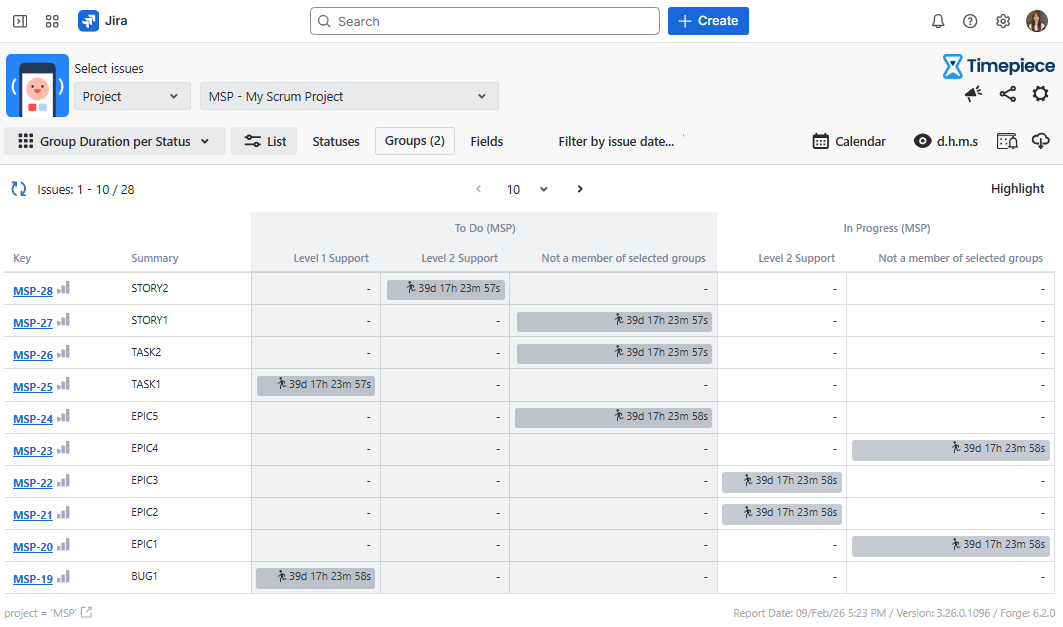
What is the Status Duration per Group report?
This is also a two-level report, but it flips the perspective. It lists your issues in rows, with user group names and status names as the columns. The column values show exactly how much time an issue spent in each status for each user group.
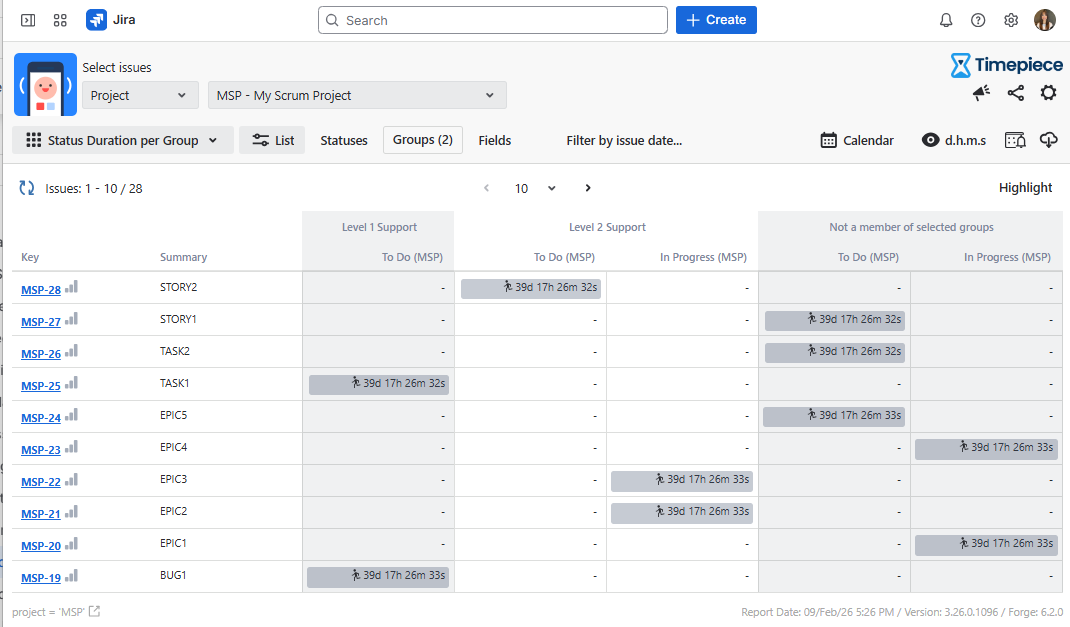
Both of these reports share one main goal: helping you identify bottleneck user groups in your workflow. Instead of pointing fingers, you get hard data showing exactly where work is piling up.
And you can select any status to describe what is Lead Time or Cycle Time for your workflow. That means if there are statuses you do not care about, you can easily exclude them so they do not show up in the report.
If you want to group similar steps (like combining "Code Review" and "QA Testing"), you can define consolidated columns to view that time combined.
You can also use Timepiece AI Assistant to generate any reports by only writing prompts in plain English.
Visit Timepiece - Time in Status for Jira today and start your 30-day free trial. You can also book a demo meeting with our experts for free.
Share this
Previous Articles
← Time in Status: How to measure in Jira?
Time-Period Reports in Timepiece – Time in Status for Jira

Time-Period Reports in Timepiece – Time in Status for Jira
06/08/2024, 11:09
2
min read
Any Field Count Report for Time in Status Cloud

Any Field Count Report for Time in Status Cloud
20/06/2022, 00:00
1
min read
New in Time in Status: Sort Report Rows by Duration

New in Time in Status: Sort Report Rows by Duration
06/08/2024, 11:09
2
min read