
By
Melisa Mutlu
on 16/07/2026, 13:19
Last updated on 9/28/26, 10:56 PM

A badly configured Jira workflow is the silent killer of team velocity, reporting accuracy, and operational scalability. Work items (issues) become trapped in status, dashboards display inconsistent metrics, and project managers struggle to extract a definitive source of truth.
At the heart of these frustrations is a fundamental misunderstanding of Jira’s core architecture: statuses, status categories, and resolutions. For Jira administrators, DevOps leads, and project managers, establishing a clean workflow architecture is the requirement for standardizing processes across company-managed and team-managed spaces.
What is the Difference Between a Jira Status and a Status Category?
The difference is that a Jira status is a highly granular, customizable workflow step, whereas a Status Category is a hardcoded systemic classification such as To Do, In Progress, or Done that dictates how Jira processes that specific status.
While administrators can create hundreds of custom workflow statuses to match specific operational stages (such as "Awaiting QA," "In Peer Review," or "Staged"), every single status must map to one of these three foundational categories. This mapping governs system logic, reporting visibility, and agile board column assignments. Jira enforces visual indicators for these categories across the user interface: gray for To Do, blue for In Progress, and green for Done.
The architectural distinction between a status and a Status Category becomes critical when utilizing Jira Query Language (JQL) or native reporting functionalities. System filters, such as standard open work reports, automatically evaluate the overarching category rather than individual custom statuses.
| Status Category | UI Color | Systemic Function & JQL Impact |
| To Do | Gray | Indicates work has not yet started. Queried via statusCategory = "To Do". |
| In Progress | Blue | Indicates active work. Triggers cycle time metrics. Queried via statusCategory = "In Progress". |
| Done | Green | Indicates completed work. Required for systemic completion calculations. Queried via statusCategory = Done. |
What is the Difference Between Company-Managed and Team-Managed Projects?
Company-managed projects standardize workflows across many teams, while team-managed projects let individual teams control their own setup.
A Jira administrator sets up company-managed projects to ensure everyone follows the same process. When an admin updates a workflow or screen in this setup, it instantly updates every project that shares it. This makes company-managed projects the right choice if you need complex rules and strict reporting across your business.
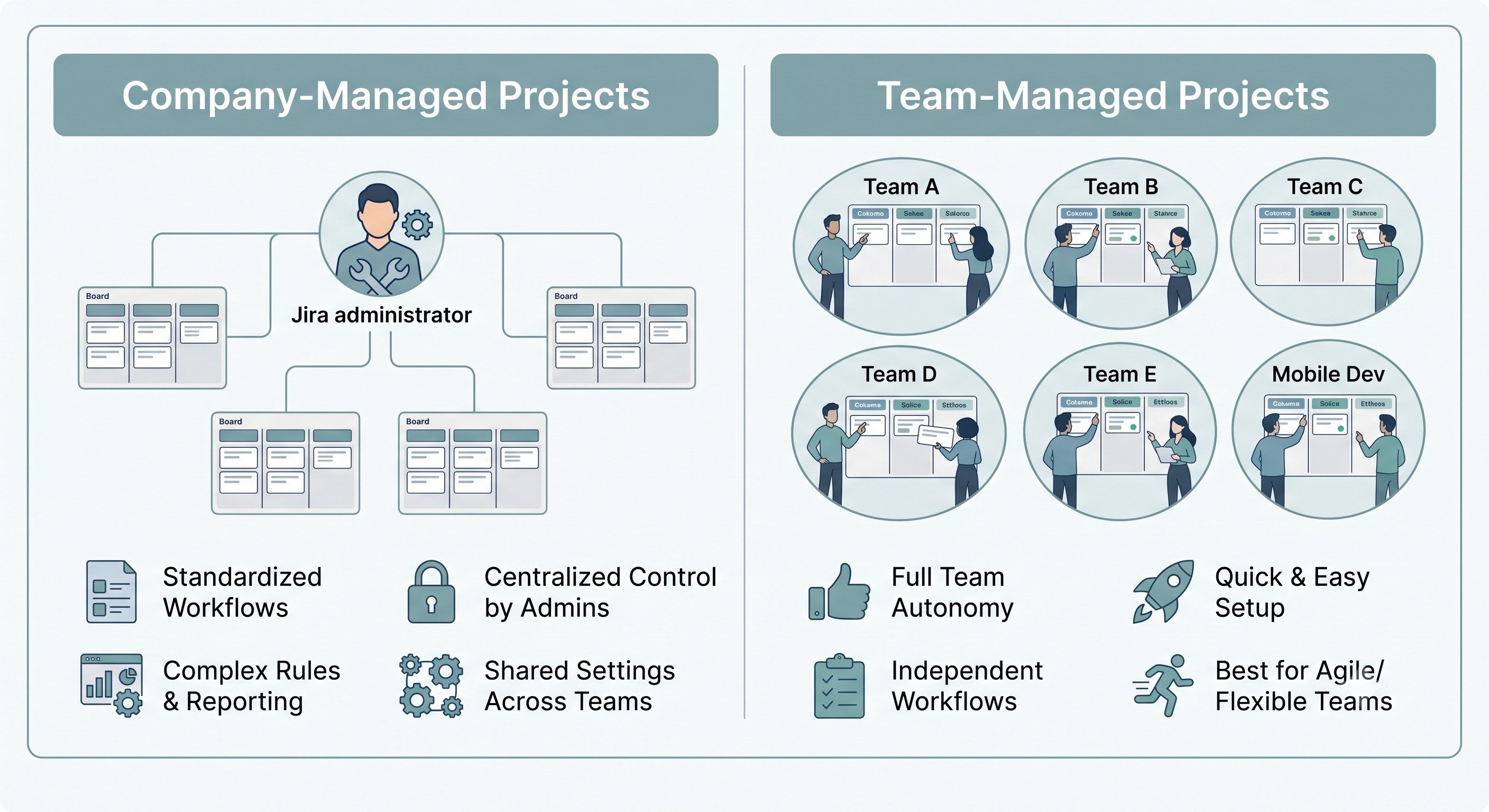
Team-managed projects are much simpler. Any team member can create and maintain them without waiting for an admin. Because these projects are completely independent, changing a status or rule here will not affect the rest of the company. This option is great for teams that want to get started quickly and manage their own daily work.
How to Create and Manage Custom Statuses Safely?
You create and manage custom statuses safely by managing global updates in company-managed projects carefully and keeping the total number of statuses low to prevent system-wide reporting failures.
In company-managed projects, a status is shared globally. If you change a status name or its Status Category, that change happens instantly across every workflow and project using it. Because Jira does not warn users when a global status is renamed, making changes without telling your team can cause major confusion.
Team-managed projects are different. They let space administrators create local statuses that exist independently. In these separate spaces, changing a status only affects that specific board, preventing accidental changes to the rest of the company. However, even in team-managed projects, statuses can be shared across different issue types. If needed, administrators must select the option to limit status edits to specific work items.
The main risk with custom statuses is creating too many of them. Making a highly specific status for every small task step makes workflows overly complex, slows teams down, and makes reporting much harder.
Workflows should be simple. If a current status already describes the work accurately, reuse it instead of making a new one.
When deleting a status to simplify your workflow, administrators must do so carefully:
- Make sure the workflow is inactive before removing the status.
- Move all current issues from the deleted status into a different, active status. If you do not move them, the data gets lost and ruins your past reports.
- Tell your team about the change, because any active work items will automatically move to the new status when you save it.
What Are the Best Practices for Designing a Jira Workflow?
The best practices for designing a Jira workflow are to keep steps simple, avoid extra statuses, manage the resolution field closely, and match your reports.
A good workflow matches the actual steps your team takes, rather than using generic templates. You should include your team when designing workflows so you only add necessary steps. Keep your paths clear and logical instead of allowing every status to move to any other status, which can skip important rules.
Managing the Resolution Field
The most important, yet often wrongly set part of a Jira workflow is the resolution field. Jira only considers an issue fully closed when the resolution field has a value, no matter what its workflow status is. If an issue moves to a Done status but the resolution field is empty, reports like "Created vs Resolved" will not count it as finished. Because of this, filters for open issues will keep showing these completed tickets. To keep reports accurate, administrators must force users to set a resolution using one of 2 methods:
Method 1: Use a Post Function for Automatic Resolution
If you want issues to automatically get the same resolution (like "Done"):
- Open the workflow editor and select the transition that goes to a Done status.
- Go to Post Functions and click Add post function.
- Choose Update issue field, select the resolution field, and set the value.
- Publish your workflow.
Method 2: Use a Screen for Manual Resolution
If users need to explain why an issue is closed (like "Fixed" or "Duplicate"):
- Create a screen that only has the resolution field.
- Link this screen to the transition going to the Done status.
- This forces users to pick a resolution when they close the ticket, preventing errors.
If you use tools that update Jira through the API, remember that the API skips user screens. You must include the resolution in your API request, or use workflow rules to force it.
Clearing Resolutions on Reopened Issues
If your workflow lets people reopen an issue (moving it from Done back to To Do or In Progress), you must set up a rule to clear the resolution.
- Select the reopening transition in the workflow editor.
- Go to Post Functions and add the Clear Field Value option.
- Pick the resolution field and publish your workflow.
If you do not clear the resolution, the reopened issue will still look crossed out, and Jira will treat it as closed, which breaks your active boards. Also, never create a resolution named "Unresolved" or "None". Jira knows an empty field means unresolved. If you fill the field with the word "Unresolved", Jira thinks the issue is finished, and your reports will be wrong.
Keep it Simple While Your Jira Grows
A clean workflow helps your team move faster, keeps work visible, and makes reports accurate. By checking your status categories, keeping statuses to a minimum, and managing the resolution field, your company builds a strong system.
As your Jira setup grows, seeing exactly how work flows is important for making things better. Reporting apps, like Timepiece - Time in Status for Jira, help managers get clear data without making messy changes to Jira. Beyond measuring basic cycle times and tracking average time in status, Timepiece features an Any Field Duration report that tracks exactly how long custom fields remain active, such as the time spent in a specific sprint or under a blocked reason. It also includes the Timepiece AI Assistant, which allows you to build ready-to-use reports simply by asking questions in plain English. Skipping complex configurations helps your team move faster, keeps work highly visible, and ensures your reports are always accurate.
By mixing a simple workflow design with the right tools, you can ensure your Jira setup runs smoothly as your business grows.
Explore Timepiece - Time in Status for Jira today and start your 30-day free trial. You can also book a demo meeting with our experts.

Time in Status vs Control Chart in Jira

Track Time Metrics Natively with Timepiece Custom Field