
By
Birkan Yildiz
on 14/01/2026, 00:00
Last updated on 9/28/26, 11:13 PM

Jira is an excellent system of record. It’s native change history logs every transition, timestamp, and author. However, turning this raw data into actionable insights requires context that Jira lacks. Why is this crucial? For data-driven organizations, the integrity of Jira reporting is the bedrock of operational decision-making.
The biggest problem is the calendar. By default, Jira uses a 24/7 calendar. This means the clock never stops. But we do stop: for weekends, nights, lunch breaks, and holidays. So, to get more accurate data and actionable insights for reporting in Jira, you need a tool: Timepiece.
Timepiece – Time in Status for Jira solves this with the powerful Custom Calendars feature.
The Problem: The “24/7” Clock
By default, Jira uses a continuous 24/7 calendar. This creates a distorted view of performance because it counts non-working hours, weekends, and holidays as “delay.”
Consider this real-world example: A team works Monday to Friday, 08:00 to 17:00. An issue is created on a Friday at 3:00 PM and resolved the following Monday at 10:00 AM.
- Standard 24/7 Reporting: Shows a ‘’Resolution Time’’ of 67 hours.
- The Reality: The team only worked on it for 4 hours.
If you are trying to identify a workflow bottleneck, or are analyzing Cycle Time or Lead Time, a 67-hour metric is useless. It hides the fact that the team was actually highly efficient. To solve this, you need Timepiece, an app designed to exclude non-working time to align metrics with actual business operations.
Timepiece allows Jira Admins to define custom calendars that specify exactly when the “timer” should be running. When you generate reports using these calendars, the app automatically excludes weekends, holidays, and off-hours from the calculation.
Here is a step-by-step guide to configuring Timepiece for 100% accuracy.
Accessing Calendar Settings
To define a custom calendar, you must have Jira Admin permissions. Navigate to the configuration page via Apps Menu (Cloud): Settings > Apps > Timepiece > Calendar Settings.
You can define multiple calendars for different teams or regions. For instance, your Support team might be 24/7, while your Dev team works 9-5. Both calendars can be defined and selected separately in the reporting screen.
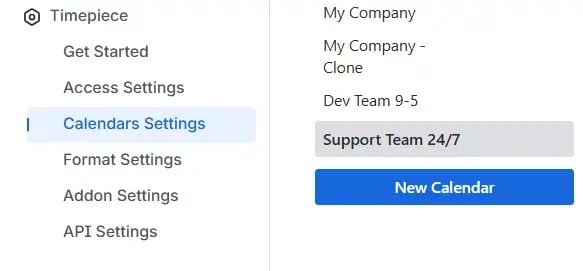
Defining the Work Week and Shifts
Timepiece offers granular control over working hours. In the Work Week section, you define which days are included and the specific start/end times for those days.
- Lunch Breaks: To exclude lunch breaks, split the workday into two shifts (e.g., 08:00–12:00 and 13:00–17:00)
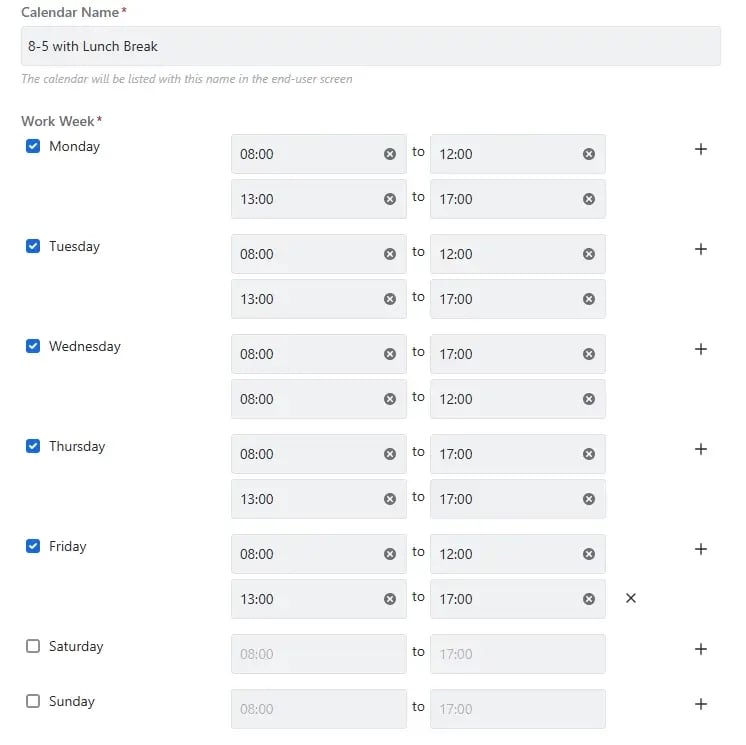
- Flexible Schedules: You can set different hours for specific days, such as a full day on weekdays and a half-day on Saturdays.
Handling Holidays
Excluding weekends isn’t enough; you must also account for public and company holidays. Timepiece allows you to mark specific dates as non-working days.
- Recurring Holidays: If a holiday occurs on the same date annually (like New Year’s Day), check the Apply each year option so you don’t have to re-enter it annually.

- Bulk Import: For fast configuration, you can use the Bulk Add Holidays feature. Simply enter holidays in a CSV format: yyyy-mm-dd, description, true/false (apply each year) to add an entire year’s schedule in one click.
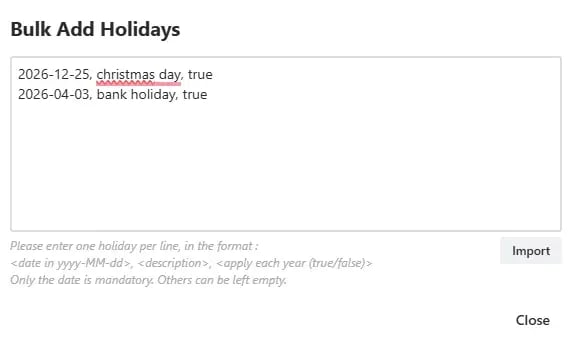
Time Zones
Global teams often operate in different time zones, which can skew data. In the calendar settings, you can select a specific Time Zone. The working hours and issue history dates will be evaluated based on this selection.

Setting a Default Calendar
Admins can set a Default Calendar that applies to the entire Jira instance. This ensures that when new users open Timepiece for the first time, they immediately see data relevant to the company’s standard working hours.
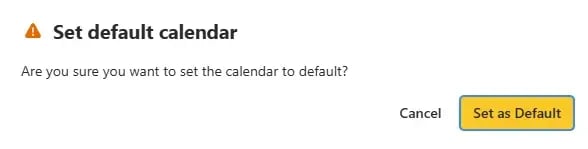
Fine-Tuning Reports: “Day Length” Settings
Once your calendar is configured, you need to decide how to display the data. Timepiece provides a critical setting called Day Length, which changes how durations are calculated and displayed.

- 24 Hour Days: This calculates 1 day as 24 hours. It is generally used for continuous reporting.
- Business Days: This adapts the length of “1 day” to match your calendar’s working hours (e.g., 8 hours).
Using the “Business Days” setting is essential if you want your report output to reflect the “business day count” rather than raw chronological time.
Pinpointing True Bottlenecks in Jira with Custom Business Calendars
By implementing Custom Business Calendars in Timepiece, you unlock the ability to:
- Pinpoint True Bottlenecks: With Status Duration reports, you can see exactly how long issues stall in specific states (like “In Review”) without weekends inflating the numbers.
- Identify Assignee Overload: With Assignee Duration reports, you can identify which team members are struggling to keep up with work during actual working hours.
- Analyze Trends Proactively: Group issues by weeks or months to visualize performance trends. Are you getting faster or slower? Accurate data allows you to answer this during your process improvement cycle.
- Measure Custom Metrics: Accurately track complex KPIs like Issue Age, Cycle Time, Lead Time, Response Time, and Resolution Time.
Data integrity is at the heart of process improvement. If your reports include non-working hours, you aren’t measuring your team’s true performance: you’re measuring the calendar.
Timepiece – Time in Status for Jira ensures your metrics reflect reality and you can trust your data. With features like multiple shifts, bulk holiday imports, and flexible day definitions, you can customize your reporting to match your organization’s exact schedule.
To learn more about Timepiece, visit its Atlassian Marketplace page. You can also see the official Timepiece documentation page or book a demo.

Exclude Non-Working Hours from Jira Time Reports with Timepiece

Finding the Bottlenecks: A Guide to Cycle Time and Lead Time Trends with Timepiece